




I’ve been driving my Tesla for three years now, and I was convinced I had mastered every corner of its interface. Yet, a few weeks ago, a friend who owns a Model Y showed me a touch gesture I had never used. That day, I realized that the Tesla screen still held many secrets, even for experienced drivers.
The interface of our favorite electric vehicles is full of hidden shortcuts and touch gestures that can transform your daily experience. These little invisible tips save you valuable time and make driving even more enjoyable.
Today, I’m going to reveal all these shortcuts that I would have loved to discover from my very first day with my Tesla. Ready to rediscover your touchscreen?
The swipe gestures nobody uses
Swipe gestures are probably the most underestimated features of the Tesla interface. Yet, they can save you tens of seconds on every trip.
Besoin d'accessoires pour ta Tesla ?
Looking for accessories for your Tesla?
The first gesture I now use systematically: a horizontal swipe on the status bar at the top of the screen. This simple movement allows you to quickly switch between driver profiles without going through the menus. Super practical when you share your car with your spouse or a family member.
Another life-changing discovery: swiping down from the top of the screen. This gesture gives direct access to essential controls without opening the main menu. You can quickly adjust the volume, air conditioning, or enable Sentry Mode in a fraction of a second.
For stats enthusiasts like me, try a side swipe on the battery gauge. You’ll discover detailed information about your energy consumption that you probably didn’t suspect.
And let’s not forget the pinch gesture on the navigation map. Yes, there are + and – buttons, but pinch zoom is so much more natural and faster, just like on your smartphone.
Vertical swipe for media
Here’s a shortcut I use daily: you can change audio tracks with a simple vertical swipe on the media player. No more searching for the next or previous button.
Volume control also works with a vertical swipe on certain areas of the screen. The advantage? You can adjust the sound without taking your eyes off the road, which significantly improves safety while driving.
Long presses that unlock hidden functions
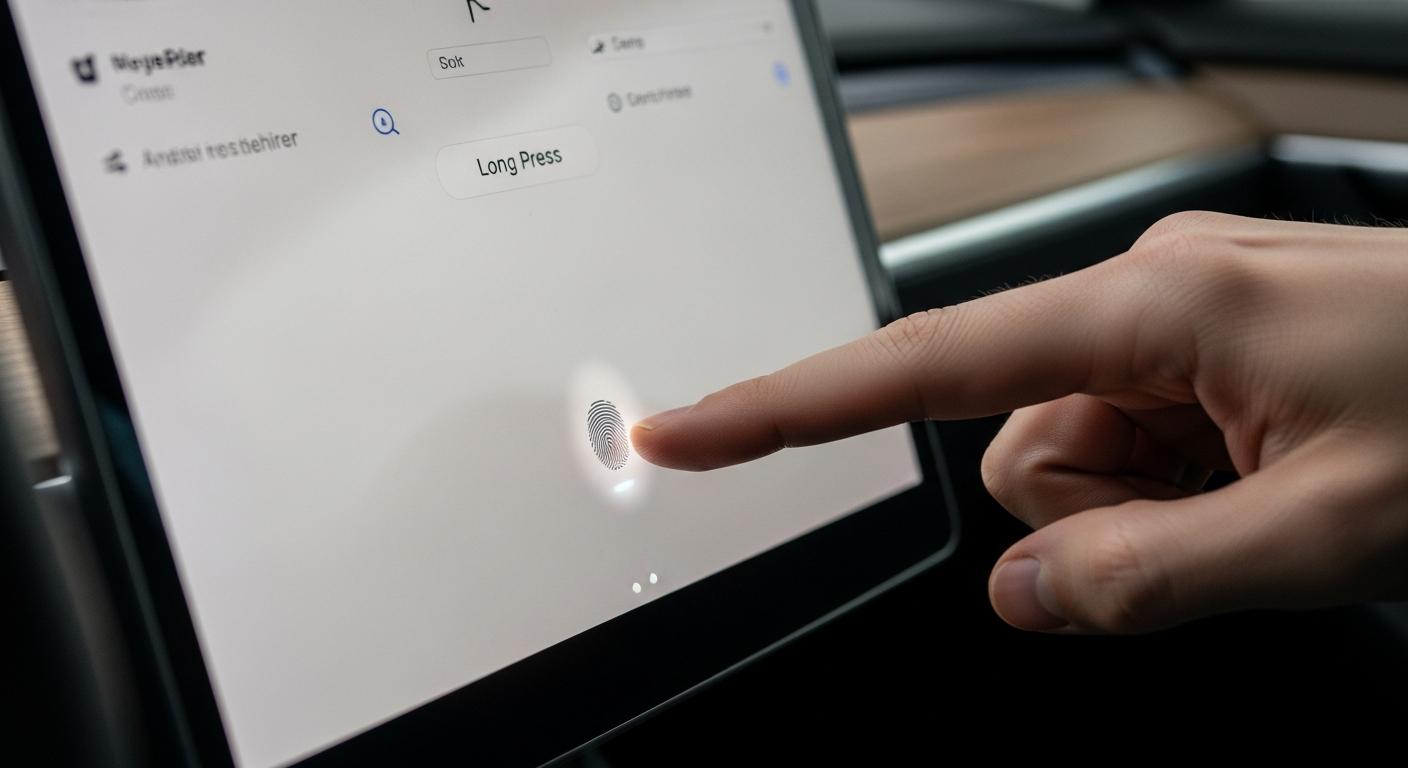
Long presses are probably the most surprising hidden shortcuts on the Tesla screen. I only discovered them after more than a year of use.
Hold your finger on the heated steering wheel icon: you’ll access a precise temperature setting instead of the basic on/off. This feature finally allowed me to find the perfect heat level for my hands in winter.
If you’ve configured HomeLink for your garage, try a long press on the corresponding button. You can directly access the configuration settings without navigating through menus. That saved me several times when I needed to quickly adjust the detection range.
A long press on the Tesla logo at the top of the screen reveals some fun Easter eggs and advanced system information. I won’t spoil the surprise, but try it on your next drive.
Finally, holding your finger on the cabin temperature display activates a “boost” mode for heating or air conditioning. Ideal when you get into a freezing or overheated car.
Long press on the dashcam
This function deserves its own section because it’s so important. A long press on the dashcam icon instantly saves the last 10 minutes of video, unlike a short press which only records from the moment you press it.
This difference may seem minor, but it becomes crucial in case of an incident. You can retroactively capture what just happened, even if you didn’t have time to react at the moment.
Besoin d'accessoires pour ta Tesla ?
Looking for accessories for your Tesla?
Secret key combinations of the interface
Secret combinations are even more obscure than long presses, but they can really get you out of trouble in certain situations.
A double tap on your vehicle’s name at the top of the screen gives access to detailed technical information about your Tesla. You’ll find data there that you won’t see anywhere else in the standard interface.
If your air conditioning is behaving strangely, try simultaneously pressing several climate control icons. This action resets the configuration and often resolves small bugs without requiring a full restart.
Speaking of screen restart, the most useful combination remains holding both steering wheel buttons (scroll wheels or buttons depending on your model) for about ten seconds. This forces a touchscreen restart when it freezes, which has happened to me twice in three years.
My favorite shortcuts to save time daily
After having tested all these shortcuts, I’ve established my own hierarchy. Not all of them are equally useful, and some are more of a gadget than a practical feature.
My top 3 daily shortcuts: the swipe on the status bar to change profiles, the long press on the dashcam, and gesture control for map zoom. These three gestures literally save me time every day.
The true strength of the Tesla screen lies in the ability to configure custom shortcuts to control your Tesla according to your specific needs. Every driver has their own custom workflow, and that’s exactly what makes the experience so unique.
Important note: some shortcuts differ slightly between Model 3/Y and Model S/X, mainly due to interface differences. The logic remains the same, but the exact location of functions may vary.
Create your own custom shortcuts
Hidden within your vehicle’s settings are customization options that few owners utilize. You can, for example, assign specific functions to the steering wheel buttons for even faster access.
The shortcut bar at the bottom of the screen is also fully customizable. I recommend placing the functions you use most often there: for me, it’s Sentry Mode, battery preconditioning, and quick trunk access.
To truly optimize your experience, you can discover how to automate certain actions with shortcuts, which will save you even more steps in your daily routine.
Little-known tips that truly change the experience
Beyond simple touch gestures, some little-known tips truly transform your daily Tesla use.
For Autopilot, few drivers know that a double press on the right scroll wheel of the steering wheel instantly activates or deactivates adaptive cruise control, without going through the screen. This optimized driving quickly becomes a reflex.
Regarding energy management, you can program battery preconditioning directly from the navigation map when you select a Supercharger. The interface automatically suggests preparing the battery to optimize charging speed.
At Superchargers, a tap on the charging icon shows you the charging speed and remaining time in real-time, with an impressive level of detail. This allows you to optimize your breaks to leave at exactly the right moment.
For the trunk and frunk, a quick double tap on the open button triggers a full opening, while a single press opens it gradually. Handy when your hands are full.
My final advice: don’t try to memorize all these gestures at once. Choose two or three that match your daily needs and practice them until they become natural. Then, gradually add other shortcuts to your repertoire.
These shortcuts have truly transformed my daily use of my Tesla. The interface, which already seemed intuitive to me, has become even more fluid and enjoyable. I still regularly discover new hidden features in the central screen that enhance my experience.
What about you, what shortcut did you discover by chance? Don’t hesitate to share your own tips in the comments, because I’m convinced there are still secrets to uncover in this fascinating screen!
Profitez d'avantages exclusifs en achetant votre Tesla
Vous envisagez d'acquérir une Tesla ? En utilisant mon code de parrainage lors de votre achat, vous pouvez bénéficier d'avantages exceptionnels !
Des kilomètres gratuits de recharge ou d'autres récompenses exclusives, mon code de parrainage est votre passeport pour des avantages supplémentaires : https://ts.la/antoine49352 🤩
Pas de pression, juste une opportunité à saisir pour enrichir votre expérience Tesla.
Découvrez ici le système du parrainage et comment utiliser le code.
Get exclusive perks when buying your Tesla
Thinking about getting a Tesla? If you use my referral code when you purchase, you may be eligible for extra perks.
Free Supercharging miles or other exclusive rewards - my referral code can unlock additional benefits: https://ts.la/antoine49352 🤩
No pressure - just a simple option if you want to enhance your Tesla experience.
Learn how the Tesla referral program works and how to use the code.