




The “Shortcuts” app, installed by default on your iPhones, allows you to control your Tesla with your voice or an icon on your home screen. Here’s a guide to set it all up.
This manipulation is theoretically risk-free, but be aware that you will enter your Tesla credentials during the process. Neither the author of the article nor the owner of this site is responsible for any misuse of this information.
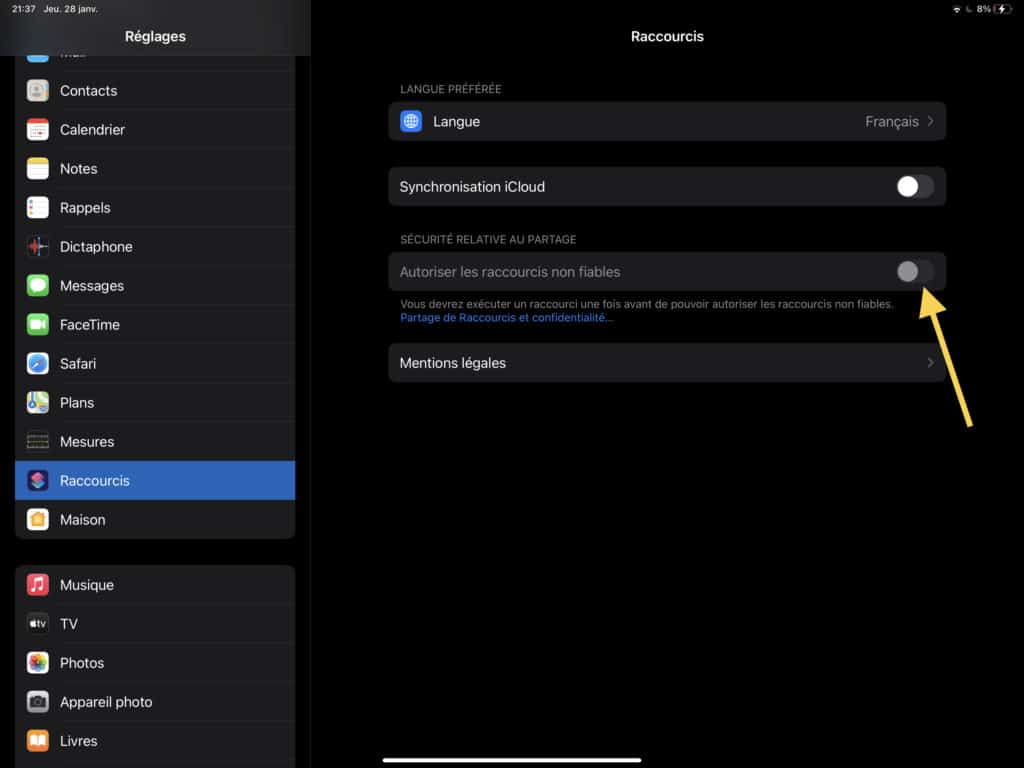
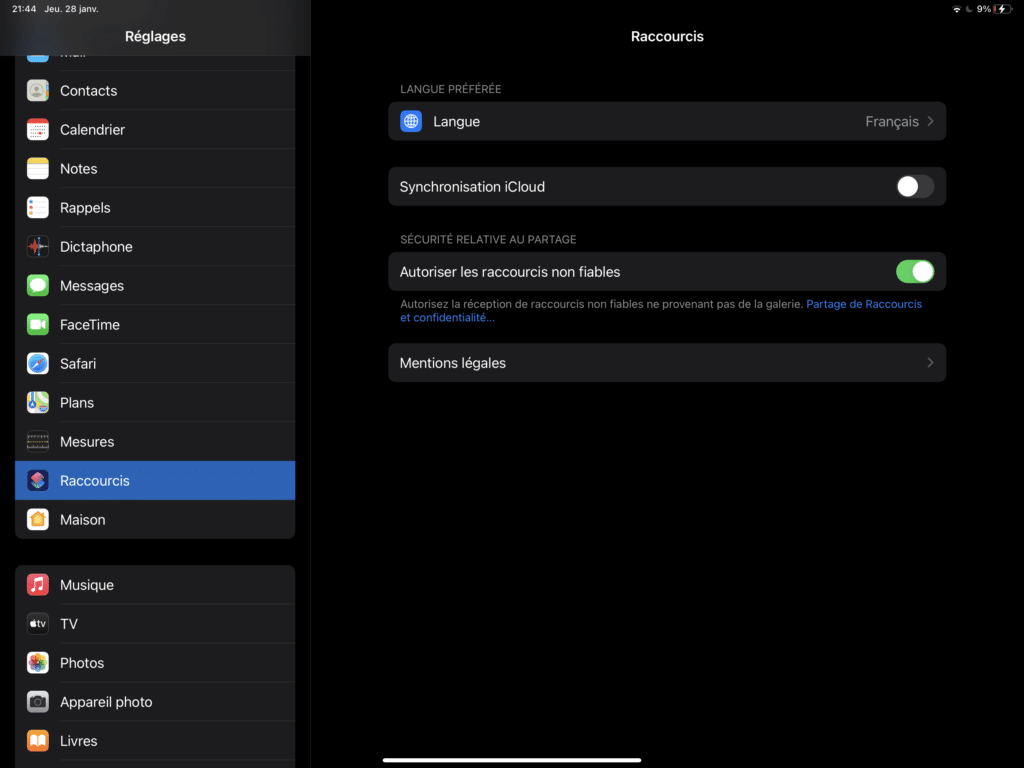
- First, let’s take a look at the settings under the “Shortcuts” tab. As you can see, this option is grayed out, which prevents us from adding unofficial shortcuts.
- To unlock this, we’ll need to create a dummy shortcut to make this setting accessible.
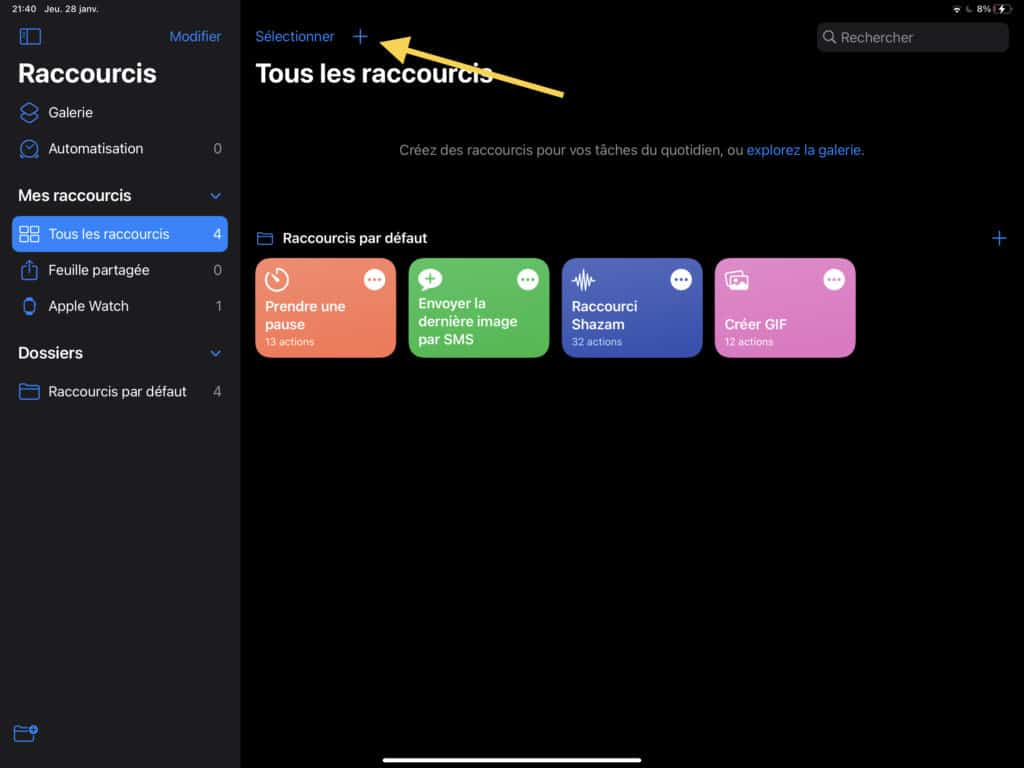
- Go to the “Shortcuts” app on your iPhone or iPad and tap the +
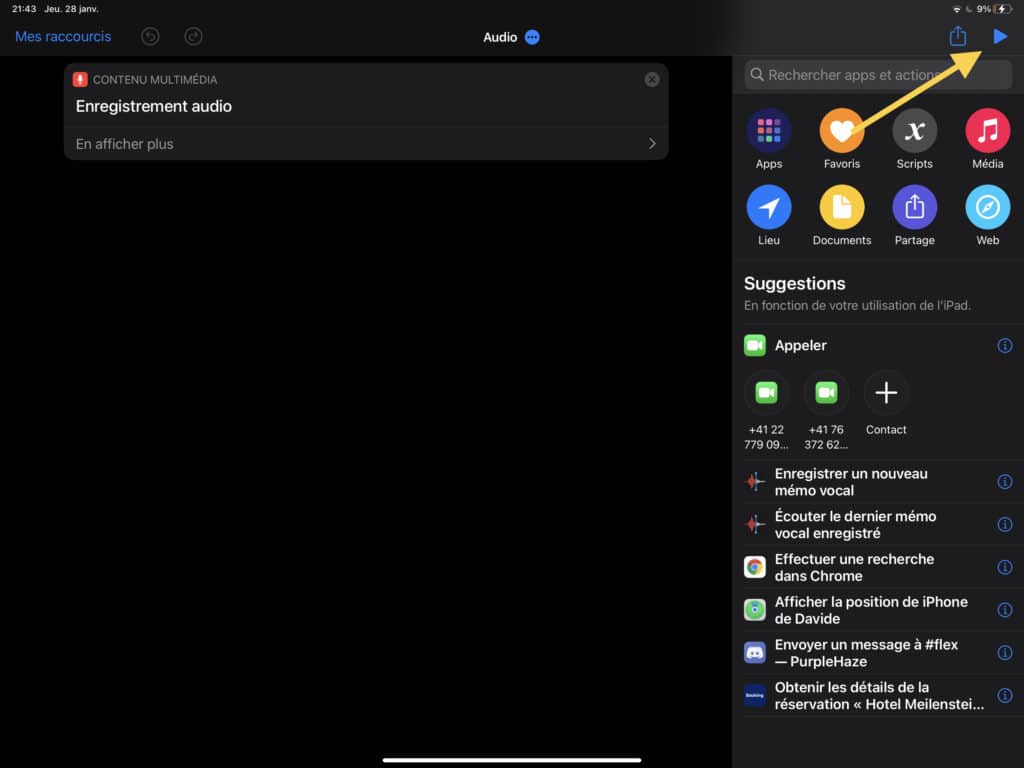
- Create any shortcut from the suggested options; in my case, I chose to record an audio file.
- Once you’ve made your choice, tap the Play button in the top right.
- Go back to settings and activate the option that was grayed out at the beginning of the tutorial.
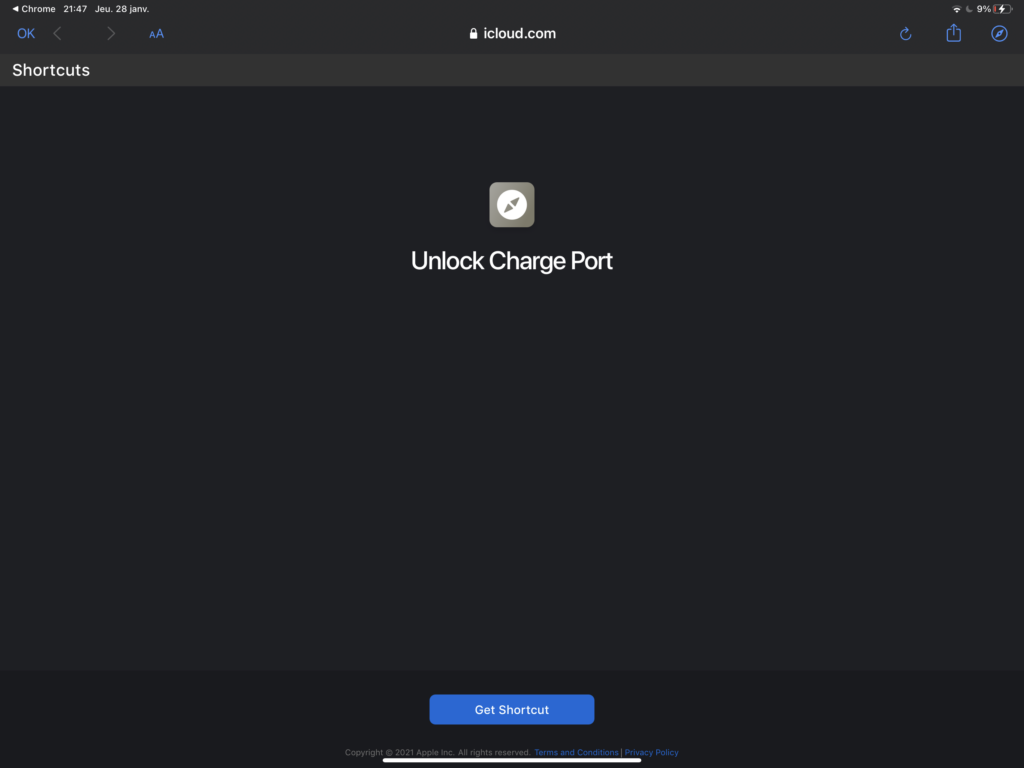
- By clicking on one of the links you’ll find at the end of the tutorial, you can directly add new shortcuts.
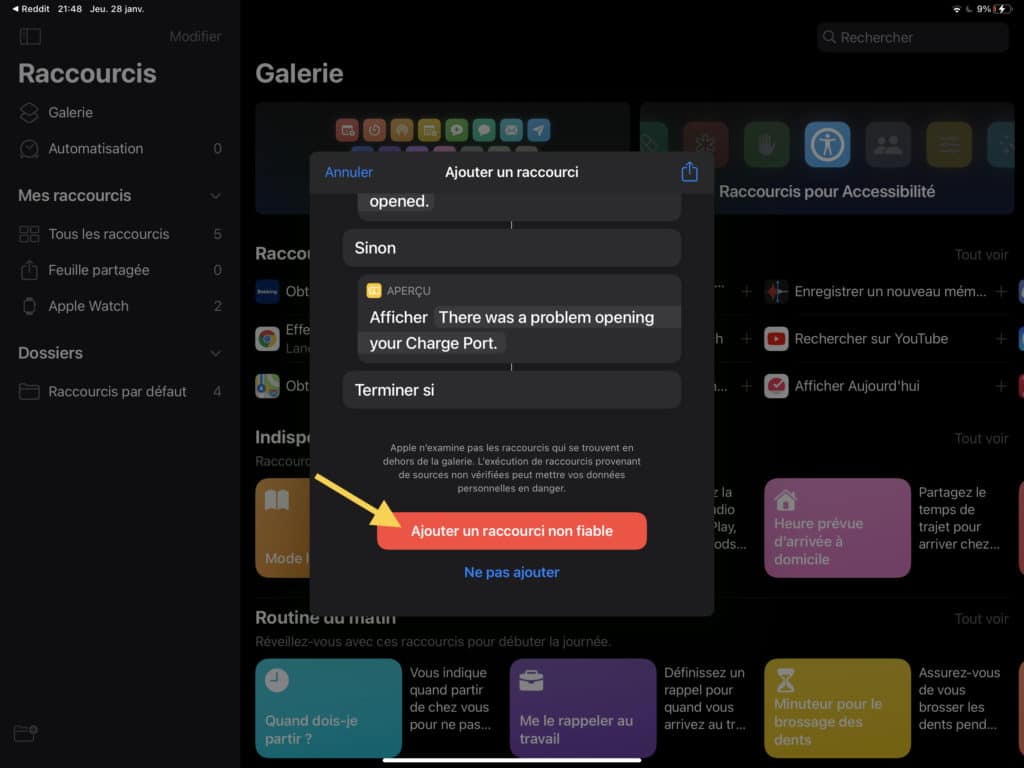
- For the command to work, you will first need to provide the email address linked to your Tesla account and your password.
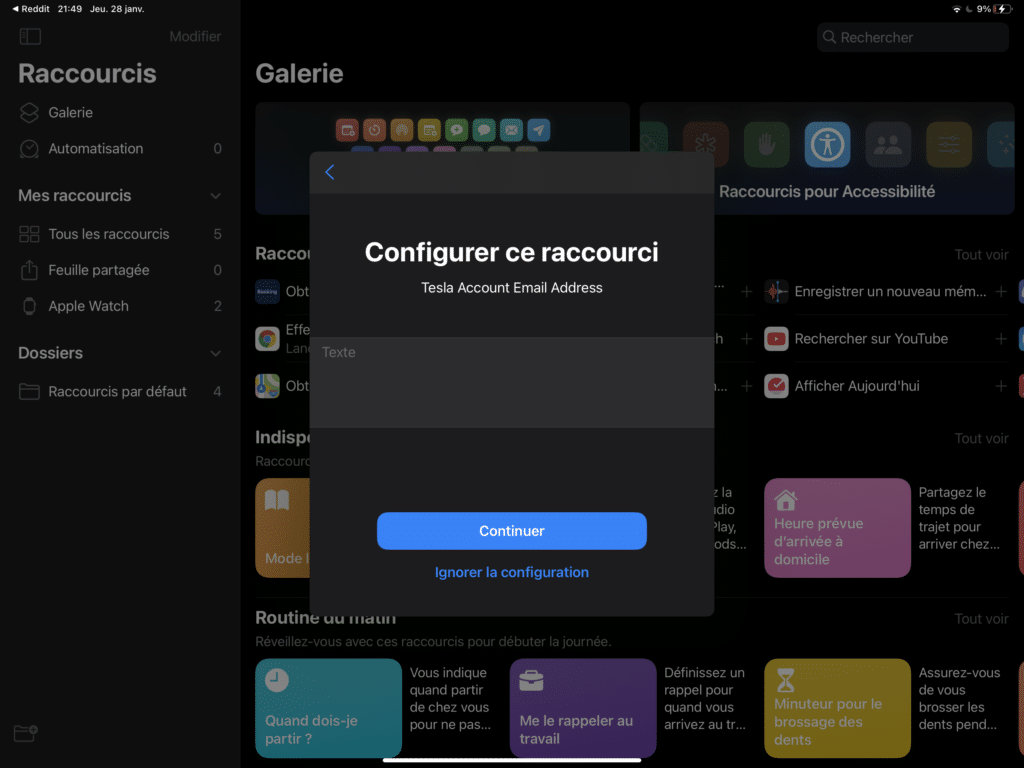
- There you go, your first Shortcut is now created. That said, you might encounter errors occasionally, but the shortcut should still work.
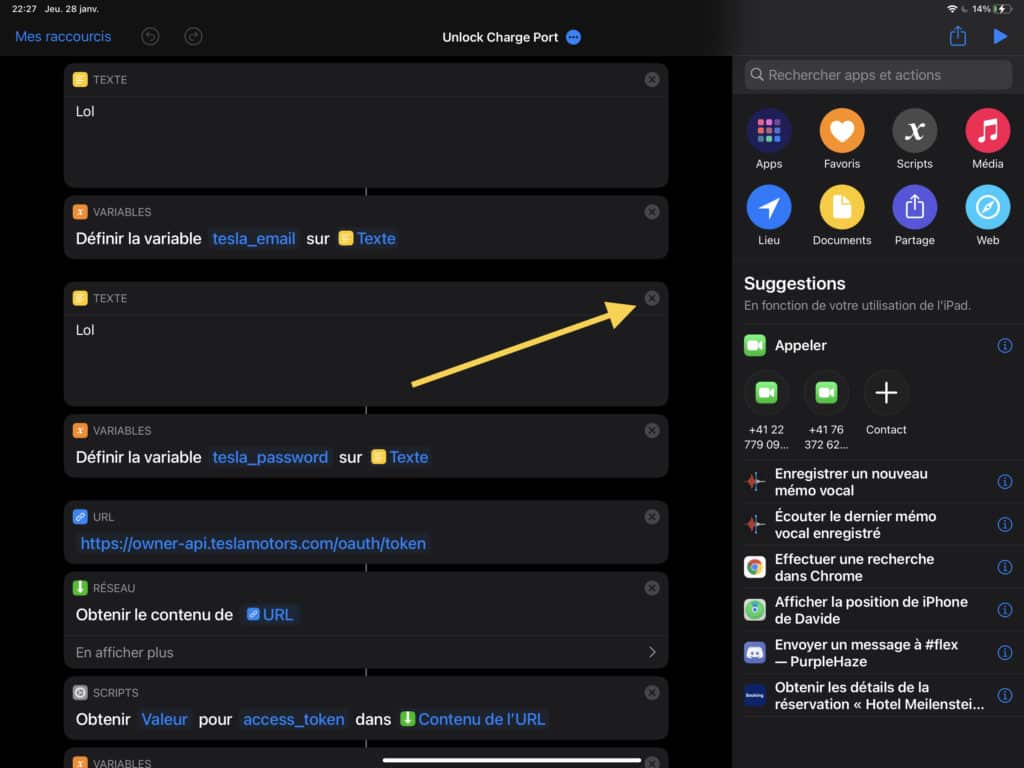
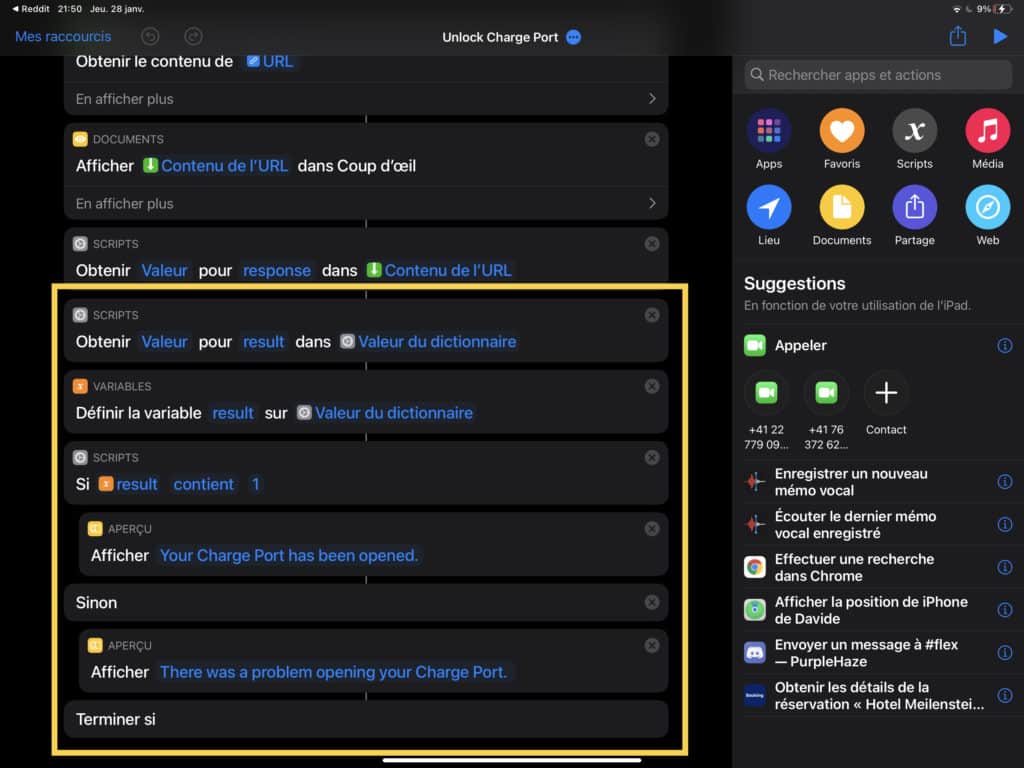
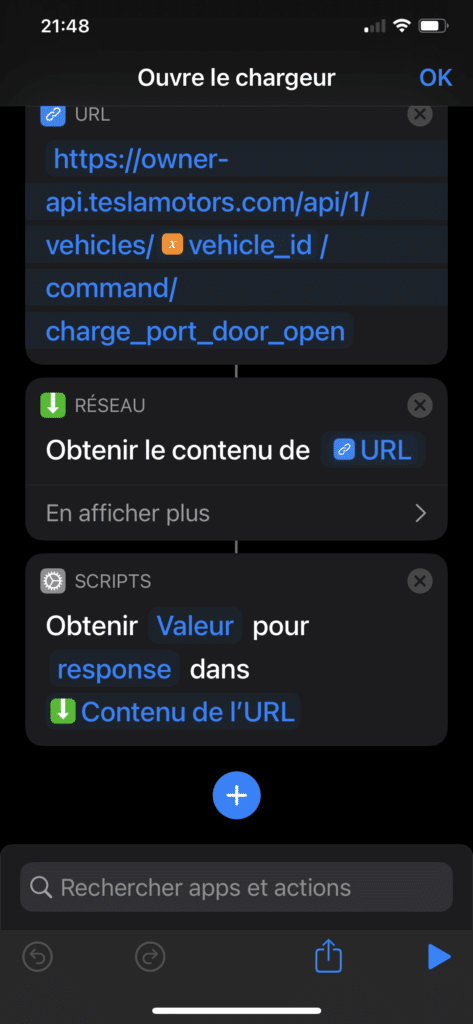
- Here’s an example of the shortcut to unlock the charging port; it contains a total of 27 actions, some of which are only there to confirm actions via messages displayed on your phone. In practice, they are not useful for everyone.
- In my case, they constantly showed an error even though the shortcut was working perfectly. I then had to eliminate the problematic actions (highlighted in yellow in the image), and I ended up with 16 actions and no more error messages.
- Feel free to experiment; you can always start over by re-clicking the link for the desired shortcut. You can modify or delete actions once the shortcut is created by tapping the small dots and then the crosses.
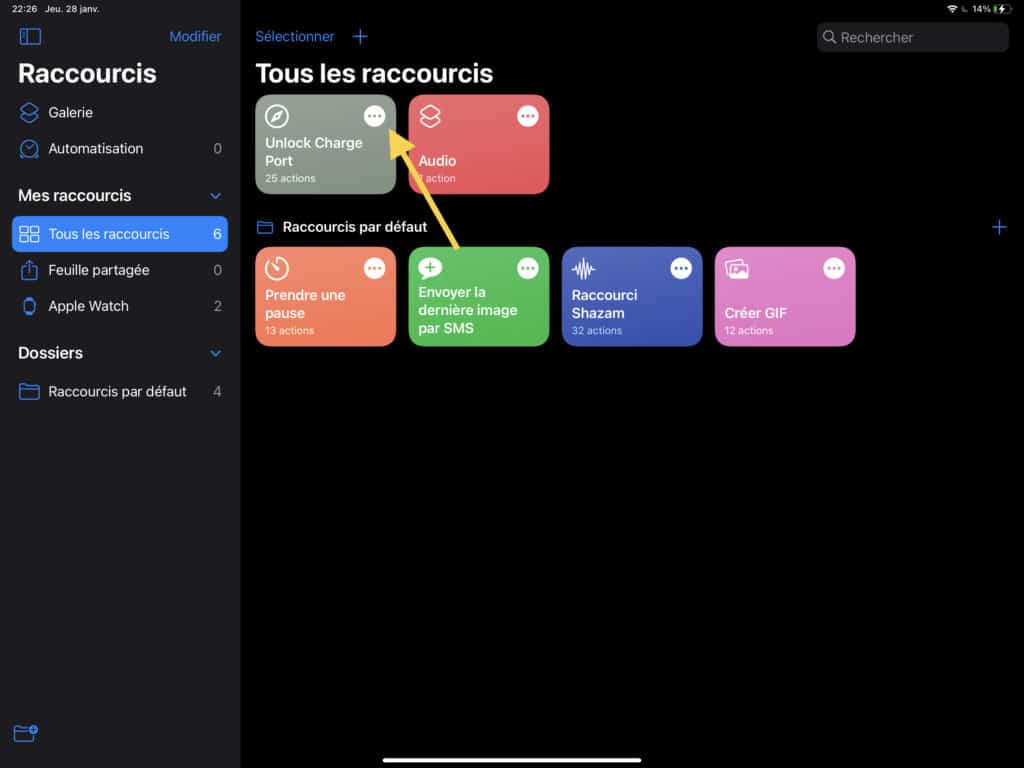
There you go, everything is set up. You can now give them any name you want so that Siri knows what you’re referring to to when you say, “Hey Siri, unlock the charger” or “Hey Siri, unlock the plug.”
Practical tip: pause between “Hey Siri” and the rest of the command.
Besoin d'accessoires pour ta Tesla ?
Looking for accessories for your Tesla?
Very important: this does not work if your car is in Sleep mode.
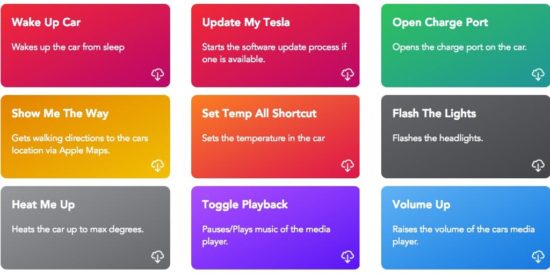
Here is a list of shortcuts; you can find others by searching Google for Tesla Shortcuts:
- Climate settings management (Displays current weather conditions settings information): https://www.icloud.com/shortcuts/9d62a79efa584a91a188cfb4c053ce16
- Charge status settings (Indicates current charge status and remaining charging time): https://www.icloud.com/shortcuts/e5fb6555b4e044b1930c4ddbfc09eb6e
- Valet mode (Activates and deactivates valet mode): https://www.icloud.com/shortcuts/1d34915a15ff4cceb3f7bdade2d03506
- Open charging port: https://www.icloud.com/shortcuts/10a5933ca5aa4fddb5caacccfff0a11c
- Flash headlights: https://www.icloud.com/shortcuts/f7cbb9e6d1c84c81966af477fe65a03e
- Horn: https://www.icloud.com/shortcuts/a625956167f4483081a0e609329b8e2
- Lock doors: https://www.icloud.com/shortcuts/39e9a146105d441bb13aa7aa37b802bf
- Unlock doors: https://www.icloud.com/shortcuts/51c896aca381466bbfaf4b41a63c9956
- Remote start (keyless driving): https://www.icloud.com/shortcuts/4044f60843b743019c1eb7f2ab98b10d
- Open/Close trunk: https://www.icloud.com/shortcuts/ccdddd315a5b47ad9b904e70a4c7adf8
- Open file:
- Vehicle location: https://www.icloud.com/shortcuts/9555e237c44f428db8c613cbbe8bfd0a
- Warm me up (Heats the car to maximum): https://www.icloud.com/shortcuts/402af7fee6e94921b4995fbf97a63762
- Wake up car (Wakes the car from sleep): https://www.icloud.com/shortcuts/402af7fee6e94921b4995fbf97a63762
- Update my Tesla (Starts the software update process): https://www.icloud.com/shortcuts/53c212ea01404c399fb431c0005e3e76
- Show me the way (Gets walking directions to locate cars via Apple Maps): https://www.icloud.com/shortcuts/c876443557e541a8bc94b83a762ef691
- Pause / Play (Pauses / plays media player music): https://www.icloud.com/shortcuts/1e819d5550f24879ad170b7565be6d5b
- Increase volume (Increases the car’s media player volume): https://www.icloud.com/shortcuts/9389fce42a9c4e6bacd372ed6aab0562
- Decrease volume (Decreases media player volume): https://www.icloud.com/shortcuts/d77a43dfec1a46ac80f091ae4d57b384
- Next track (Skips the currently playing track): https://www.icloud.com/shortcuts/d497e01a2ce9439ab5eee93804ded089
- Unlock plug: https://www.icloud.com/shortcuts/e76db84f0ace4a8ba974ab91e4a61af2
- Get Token: https://www.icloud.com/shortcuts/2299a0d27ab74e329edc53af3b6bc6ab
- Previous track (Goes back one track on the media player): https://www.icloud.com/shortcuts/8d86ebfbe5d14a07a06947ec364dfdb7
- Can I drive home (Checks distance and driving range): https://www.icloud.com/shortcuts/1777943e775546fd99f6e094bbe5038c
Profitez d'avantages exclusifs en achetant votre Tesla
Vous envisagez d'acquérir une Tesla ? En utilisant mon code de parrainage lors de votre achat, vous pouvez bénéficier d'avantages exceptionnels !
Des kilomètres gratuits de recharge ou d'autres récompenses exclusives, mon code de parrainage est votre passeport pour des avantages supplémentaires : https://ts.la/antoine49352 🤩
Pas de pression, juste une opportunité à saisir pour enrichir votre expérience Tesla.
Découvrez ici le système du parrainage et comment utiliser le code.
Get exclusive perks when buying your Tesla
Thinking about getting a Tesla? If you use my referral code when you purchase, you may be eligible for extra perks.
Free Supercharging miles or other exclusive rewards - my referral code can unlock additional benefits: https://ts.la/antoine49352 🤩
No pressure - just a simple option if you want to enhance your Tesla experience.
Learn how the Tesla referral program works and how to use the code.