



Discover the hidden features to customize your Tesla’s screen
Hey there, Tesla fan! Think you know your favorite electric car inside out? Wait until you discover the hidden features lurking in your ride’s screen. These tips will allow you to customize your Tesla’s screen in a unique way and make your experience even cooler. So, ready for a little adventure into the depths of Tesla technology?
First, did you know that behind this ultra-modern touchscreen lie screen configuration options that even the pros don’t always know about? It’s true, and I’m here to guide you through this high-tech exploration.
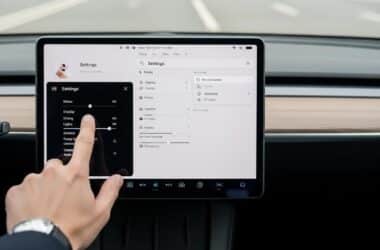
Start with a simple swipe. Yes, it’s often through such a simple gesture that secrets are revealed. Try swiping the screen with different gestures, long-pressing certain elements… You might be surprised by what you find!
What if I told you that with a few cleverly chosen taps, you can reveal menus that offer a wider range of settings? From display settings to interface customization options, your screen is a true Pandora’s box waiting to be opened.
Besoin d'accessoires pour ta Tesla ?
Looking for accessories for your Tesla?
Come on, don’t just stand there. Dive in and start exploring! The power to customize your Tesla’s screen is literally at your fingertips. You’ll see, your car will never be the same after this.
- Curious to customize your Tesla’s screen beyond the basic options? It’s time to dive into the hidden features that await you.
- Start by accessing the “Service” menu. To do this, while parked, press and hold the “T” at the top of the screen, then enter your PIN if necessary.
- Once in the Service menu, you’ll see various options. Look for those labeled “Display” or “Screen”.
- There you’ll find settings not visible in the standard menus, such as screen configuration to improve visibility or adjust sleep settings.
- Want to change the interface color? Some versions allow you to modify color themes directly from this menu.
- If you want to surprise your passengers, activate special display modes. For example, switch your screen to “Mars” mode for an extraterrestrial navigation!
- Be sure to explore every sub-menu. Options like “Clean Mode” allow you to clean the screen without accidentally activating functions.
Remember to save your settings before exiting the Service menu. This ensures your new configurations are properly applied. Play with these settings until you find the perfect combination for your daily use. After all, your Tesla should be as unique as you are!
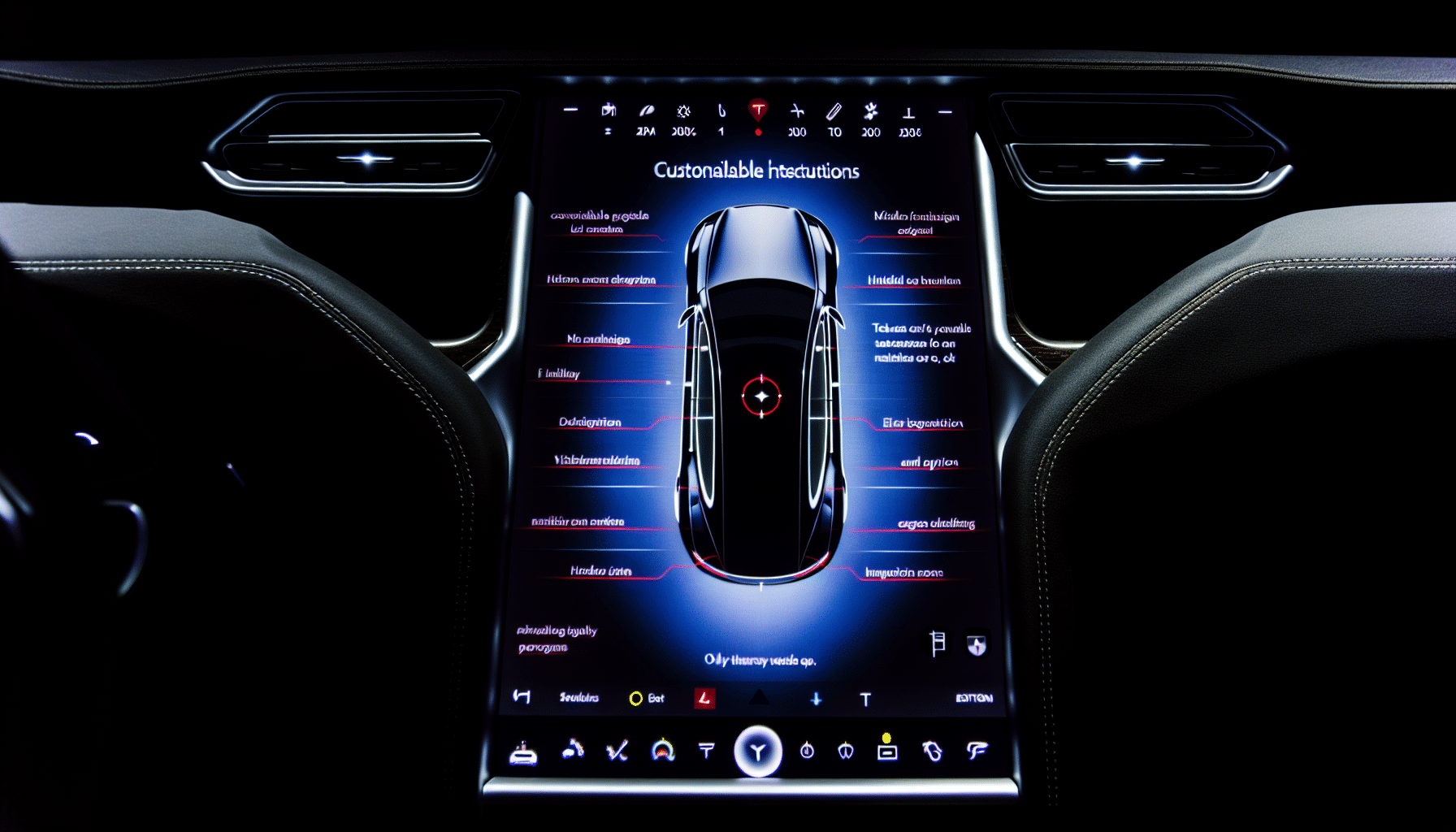
Customize your Tesla’s interface with these little-known tips
Do you want your car’s interface to stand out and reflect your personality? To customize your Tesla’s screen, you just need to know a few simple but effective tips. Let’s dive into the hidden settings to create a more personal and unique experience.
Start with display themes. Although Tesla offers standard customization options, there are unofficial themes you can activate. Do you want a minimalist look or something bolder? Dig through forums dedicated to Tesla owners, and you’ll discover treasures.
Next, adjust the display scale. You can often change the size of icons and text on the screen, a particularly useful feature for those who prefer a clean interface or, conversely, more easily readable elements.
- Set the icon size according to your preferences.
- Adjust the text size for better readability.
Don’t underestimate the importance of shortcuts. Certain screen gestures can be configured to quickly access your favorite features. It’s a screen configuration that takes a little time, but greatly improves the user experience. Take the time to learn and define these shortcuts to make your daily use smoother.
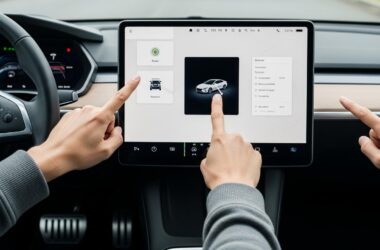
Finally, play with the hidden features for a personal touch. For example, did you know you can change the appearance of your vehicle displayed on the screen to match your Tesla’s actual color?
Each adjustment reflects your style and can transform how you communicate with your vehicle. Experiment, test, and discover what works best for you!
Modify the Tesla screen display: hidden options and settings
Want to customize your Tesla’s screen to perfection? Let’s dive into the hidden features for a screen configuration that will amaze you. You’ll see, with a few tips, your dashboard can become as unique as your fingerprint.
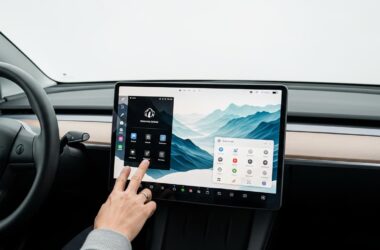
First, did you know you can rearrange the icons on your app bar? Simply press and hold an icon and drag it to the desired location. Simple yet effective for having your favorite apps at your fingertips!
- Change the map size – by pinching with two fingers, like on a smartphone, adjust the map display to meet your visual needs.
- Switch to night mode – sometimes, automatic mode can be finicky. Manually switching to night mode to reduce glare is sometimes necessary. Find this option in the display settings.
- Hide the status bar – for a cleaner look, you can hide the status bar at the top of the screen. This gives you a wider view of the map or the application in use.
Another gem? Activate developer mode for even more customization. Caution, this option is intended for advanced users and should be used with care. It can reveal additional configuration options for tech enthusiasts.
Finally, explore the display settings section to adjust the screen’s brightness or color mode. Whether you prefer a warmer display in the evening or brightness that adjusts automatically, the possibilities are there.
Besoin d'accessoires pour ta Tesla ?
Looking for accessories for your Tesla?
By customizing intelligently, your Tesla will not only be a pleasure to drive, but also a pleasure to use. After all, the user interface is your direct link to this technological marvel. Make it your own!
Tesla’s Easter Eggs: fun features for your screen
Ah, Tesla’s Easter eggs! These hidden features are like pirate treasures for the inner geek in every Tesla owner. When it comes to customizing your Tesla’s screen, these playful gems add a touch of whimsy to the user experience. So, ready to add some fun to your dashboard?
- Mars Rover: By typing “Mars” on your Tesla’s screen, the map transforms into a Martian surface, and your car becomes a Rover. How about a little getaway to the Red Planet?
- Rainbow Road: Inspired by the famous video game Mario Kart, this mode transforms your Autopilot display into a rainbow road accompanied by music. A fun nod during your monotonous commutes.
- Back to the Future: Imagine seeing your Tesla transform into the legendary DeLorean. Type a special code, and your Tesla’s visual changes, transporting you to another era. Awesome, right?
And that’s not all! To activate these surprises, you often just need to play with your Tesla’s name or repeatedly press certain icons in the screen configuration. Explore, tap, hold – the treasure hunt is on! These Easter eggs aren’t just for show; they demonstrate the boldness of a company that knows how to blend technology and fun. Your Tesla becomes even more unique.
Don’t forget, you find things by looking! So, the next time you sit in your Tesla, take a moment to go on an Easter egg hunt. Who knows what other surprises await you?
Optimizing your driving experience involves an effective customization of your Tesla’s screen. Fortunately, Tesla’s developers thought of everything by integrating hidden features that allow you to push screen configuration to a higher level.
- Customizable Night Mode: Tesla allows you to switch between day and night mode manually. This small adjustment is ideal for eliminating screen glare during long night drives.
- Energy Mode: By accessing this menu, you can monitor your vehicle’s energy usage in real-time, and adjust your driving style for better efficiency.
- Charging Schedule: Schedule your Tesla’s charging to take advantage of off-peak electricity rates – it’s economical and smart.
- Advanced Voice Commands: By simply saying “Open display settings”, you gain access to a multitude of settings that allow you to modify the display without going through the touch menus.
Remember that these menus and options are not always immediately visible, and may require a combination of buttons or specific gestures on the touchscreen. For example, a two-finger “swipe” upwards can reveal additional customization options.
To discover even more tricks and tips, be sure to visit official Tesla support, where you’ll find detailed guides for each model.
Remember that every software update can bring its share of new features. So, keep an eye on the latest versions to always be at the forefront of your Tesla’s customization. After all, a Tesla is much more than just a car; it’s a complete driving experience, shaped by your preferences and style.
Profitez d'avantages exclusifs en achetant votre Tesla
Vous envisagez d'acquérir une Tesla ? En utilisant mon code de parrainage lors de votre achat, vous pouvez bénéficier d'avantages exceptionnels !
Des kilomètres gratuits de recharge ou d'autres récompenses exclusives, mon code de parrainage est votre passeport pour des avantages supplémentaires : https://ts.la/antoine49352 🤩
Pas de pression, juste une opportunité à saisir pour enrichir votre expérience Tesla.
Découvrez ici le système du parrainage et comment utiliser le code.
Get exclusive perks when buying your Tesla
Thinking about getting a Tesla? If you use my referral code when you purchase, you may be eligible for extra perks.
Free Supercharging miles or other exclusive rewards - my referral code can unlock additional benefits: https://ts.la/antoine49352 🤩
No pressure - just a simple option if you want to enhance your Tesla experience.
Learn how the Tesla referral program works and how to use the code.