


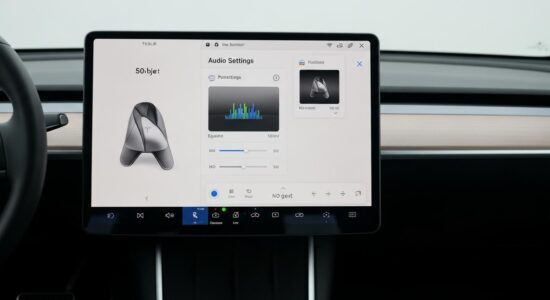
You can customize your Tesla’s sounds in just a few minutes, directly from the touchscreen via Controls > Locking or Toybox > Boombox. To go further, prepare a FAT32 USB drive with a LockChime.wav file at the root or in a Boombox folder, then select it from the dedicated menu. No technical skills required — just a few minutes and a little creativity.
Your Tesla leaves the factory with default sounds… correct. Functional. Honest. But not really you.
The good news? In just a few minutes and without any technical tinkering, you can customize your Tesla’s sounds – turn signals, reverse warning, lock sound, Boombox – and make your daily driving experience a little more personal.
In this tutorial, I guide you step by step through everything you can modify: the native sounds accessible from the screen, and importing your own sounds via a USB drive. Let’s go!
Besoin d'accessoires pour ta Tesla ?
Looking for accessories for your Tesla?
What you can really customize on your Tesla (overview)
Before diving into the menus, let’s set the scene. Tesla offers several levels of sound customization, more extensive than one might initially think. We can distinguish 3 main categories:
- Driving sounds: turn signals, regeneration sound, pedestrian warning system (AVAS)
- Vehicle status sounds: locking/unlocking, arrival at charge
- The Boombox: the festive horn mode, broadcast via the external speaker
These features are available on the Model 3, Model Y, Model S, Model X, and Cybertruck, with some nuances depending on the equipment. The Boombox, for example, is reserved for vehicles equipped with the Pedestrian Warning System (PWS).
Some options also vary depending on the market: in Europe, regulations strictly govern pedestrian sound, which limits the possible modifications on this specific point.
Edit native sounds from your Tesla’s screen
Most basic sound customizations are done without any accessory, directly from your Tesla’s interface. The main path to remember: Controls > Sounds for general settings, and Controls > Lock for the lock confirmation sound.
Change the turn signal sound
It’s often the first customization you discover. From the Controls > Sounds menu, you can access the turn signal sound options. Tesla offers several native variants – from the classic mechanical “click” to more discreet and modern sounds.
My personal tip: certain sounds are noticeably less present in the cabin, which really changes the atmosphere on long journeys. The change applies immediately, without restarting the vehicle.
Customize the backup alert and pedestrian sound
The pedestrian sound is the AVAS (Acoustic Vehicle Alerting System) – a device mandatory in Europe for all electric and hybrid vehicles since July 2021.
The AVAS emits an artificial sound at low speed to signal the vehicle to pedestrians and cyclists – it activates below 20 km/h, or when reversing.
Tesla offers a few options in the menu for this sound, but the degree of customization remains constrained by regulations. You cannot remove this sound, nor replace it with just anything. It is a legal requirement, not an oversight on Tesla’s part.
Add your own sounds via a USB drive: the step-by-step guide
This is where it gets really fun. Tesla lets you import your own audio files for certain sounds – namely the lock sound (LockChime) and Boombox sounds. Here’s how to do it, step by step.
Step 1 – Prepare the USB drive
Your USB drive must be formatted in FAT32 or exFAT. This is the absolute prerequisite for your Tesla to recognize it.
The tree structure then depends on the sound you want to customize:
- For the lock sound: place the file directly at the root of the drive, named exactly
LockChime.wav(case-sensitive). The file must be a 44.1kHz/16-bit WAV, placed inBoombox/LockChime.wavon the USB drive. Its size must not exceed 1 MB. - For the Boombox: create a folder named
Boomboxat the root of the drive, and place your MP3 files inside. You can place up to 5 sound files on a single device.
Step 2 – Choosing and formatting your sounds
To find royalty-free sounds, I recommend banks such as Freesound.org, Pixabay Audio or Zapsplat – everything is free and legally usable.
Besoin d'accessoires pour ta Tesla ?
Looking for accessories for your Tesla?
A few practical rules:
- For the LockChime: aim for a short sound, between 1 and 3 seconds maximum. Beyond that, it quickly becomes annoying.
- For the Boombox: MP3 files are accepted, no strict duration constraint.
- Use Audacity (free, available on Mac and PC) to trim your file, normalize the volume and export it in the right format.
A sound that is too loud or too quiet will be disappointing in use – take the time to properly adjust the level before copying the file to the USB drive.
Step 3 – Install and test
Plug your USB drive into the USB port of your Tesla (usually in the glove box). Then:
- Go to All apps > Toybox > Boombox
- Enables the Lock Sound option
- Select USB from the list of proposed sounds
- Test immediately from the screen – or get out of the car and lock it!
The first time my Tesla greeted me with my personal sound, I smiled every time I locked it. It’s silly, but that’s exactly what makes the Tesla so endearing.
To go even further on this subject, I had shared a detailed review on how to customize the lock sound via USB – with concrete examples and sounds tested in real conditions.
The Boombox: turning your horn into a sonic signature
The Boombox is the Tesla feature that impresses non-initiates the most. The concept: replace the horn with a custom sound, broadcast through the external speaker of the PWS system. You honk with R2-D2’s scream, a Mexican trumpet tune, or the Star Wars theme. The choice is yours.
The Boombox is available only on vehicles equipped with the Pedestrian Warning System (PWS), which covers the vast majority of recent Model 3, Model Y, Model S, and Model X vehicles.
To activate it: All apps > Toybox > Boombox. You’ll find the native sounds offered by Tesla, but also the option to select your own MP3 files from the USB drive (Boombox folder as seen above).
The rule to remember: the Boombox deactivates as soon as the vehicle is in motion. The custom horn only works in Park – while driving, the horn reverts to the standard sound, in compliance with regulations. This is a non-negotiable safety constraint.
A few ideas for creative use:
- Welcome children at the school exit with a funny sound
- Create an ambiance at a Tesla gathering
- Signal a friend in a parking lot with a recognizable sound
Usage note: keep it reasonable in residential areas. The Tesla spirit is fun – not noise pollution at 11pm.
If you want to explore all the options for changing the locking sound of your Tesla, I’ve compiled community feedback on this topic – with some great sound finds.
A few ideas and inspirations to personalize your sound experience
The Tesla community is never short of ideas on this front. Here are a few leads worth trying:
- 🤖 R2-D2 for the locking sound – a timeless classic
- 🏎️ Ferrari or muscle car engine for the Boombox – the effect is guaranteed
- 🎵 A personal jingle for when charging starts – why not the theme from your favorite show?
- 🎺 A Mexican trumpet – because why not
And if you want to take personalization even further, Tesla also allows you to synchronize lights and sounds during a light show synchronized with music – another dimension, stunning to see in person.
And you, have you found a perfect sound for your Tesla? Share it in the comments – I’m always curious to see what the community comes up with.
Your Tesla is already an impressive machine. It might as well sound like yours.
Profitez d'avantages exclusifs en achetant votre Tesla
Vous envisagez d'acquérir une Tesla ? En utilisant mon code de parrainage lors de votre achat, vous pouvez bénéficier d'avantages exceptionnels !
Des kilomètres gratuits de recharge ou d'autres récompenses exclusives, mon code de parrainage est votre passeport pour des avantages supplémentaires : https://ts.la/antoine49352 🤩
Pas de pression, juste une opportunité à saisir pour enrichir votre expérience Tesla.
Découvrez ici le système du parrainage et comment utiliser le code.
Get exclusive perks when buying your Tesla
Thinking about getting a Tesla? If you use my referral code when you purchase, you may be eligible for extra perks.
Free Supercharging miles or other exclusive rewards - my referral code can unlock additional benefits: https://ts.la/antoine49352 🤩
No pressure - just a simple option if you want to enhance your Tesla experience.
Learn how the Tesla referral program works and how to use the code.