



Your Tesla screen is much more than just an interface: it’s your daily cockpit, your road companion, the nerve center of your entire driving experience. So why not make it your own, right? I’m going to show you how to customize your Tesla’s wallpaper with your own photos in just a few minutes.
Whether you want to display a family photo, a landscape from your last vacation, or a portrait of your favorite pet, transforming your unique Tesla interface is child’s play. No more generic wallpapers: make way for total customization that will make every journey even more enjoyable.
In this complete tutorial, I’ll guide you step-by-step to install your personal photos, I’ll share my tips for optimal results, and I’ll explain how to go even further in customizing your screen.
Wallpapers natively available in your Tesla
Tesla’s default gallery
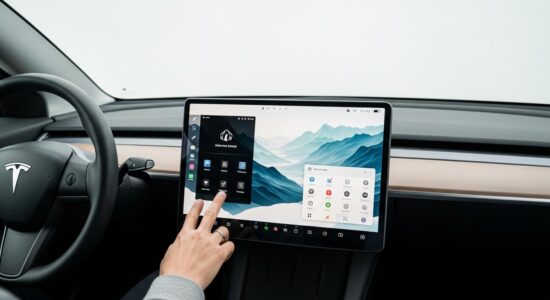
Tesla offers a native gallery of wallpapers directly integrated into its system. To access it, it’s very simple: tap the Display icon (shaped like a small screen) at the bottom of your interface, then select “Wallpaper”.
Besoin d'accessoires pour ta Tesla ?
Looking for accessories for your Tesla?
You’ll find there a selection of carefully chosen visuals:
- Clean landscapes (mountains, deserts, forests)
- Abstract and minimalist designs
- Some Tesla artistic creations
- Futuristic renderings in line with the brand’s spirit
The variety of these Tesla wallpapers is regularly enriched with software updates. Each new system version can bring its share of new visuals, which is pretty cool.
But let’s be honest: the choice remains limited. And even if these images are nice, they sometimes lack that personal touch that makes all the difference.
Why would you want to go further?
Total customization of your user experience, that’s why! Your Tesla is unique, and so is your use of it, so why not your interface?
Putting a photo that truly speaks to you completely changes your perception of the interior. Imagine starting every morning with your children’s smiles, that memorable sunset from your vacation, or that landscape that inspires you.
It’s also a matter of visual comfort: some prefer warm hues, others cool tones, and no one knows better than you what suits you. Making your Tesla truly unique means fully owning your vehicle.
The complete tutorial to install your own images
Prepare your images (format and resolution)
Before you start, a few preparations are necessary to ensure a flawless display on your screen.
Optimal resolution: I strongly recommend using images of at least 1920×1200 pixels, which correspond to the 16:10 ratio of the Tesla screen. You can go larger, but not smaller if you want to avoid blur or pixelation.
Accepted formats: Tesla supports JPG and PNG formats. Both work perfectly, although JPG will generally be lighter in terms of file size.
A few tips to optimize interface readability:
- Avoid overly busy or detailed images which may strain your eyes
- Prefer clean visuals with breathing room
- Think about contrast: Tesla icons are primarily white, so a background that’s too light could be an issue
- Don’t hesitate to use a free online resizing tool if your photos are not the correct dimensions
The step-by-step method
Now that your images are ready, let’s move on to the actual installation. It’s really very simple:
- Prepare a USB drive formatted in FAT32 or exFAT (most modern drives already are)
- Create a “Backgrounds” folder directly at the root of the drive (pay attention to the exact spelling, with the “s”)
- Place your prepared personal images in this folder
- Insert the USB drive into one of your Tesla’s USB ports (in the front or in the center console)
- On the touchscreen, go to Display > Wallpaper
- Select the “Personal” or “USB” tab (depending on the software version)
- Choose your image from the list that appears
- Confirm your choice: the image applies immediately!
And there you have it! In less than five minutes, you’ve managed to customize your Tesla’s wallpaper. Magical, right?
My tips for optimal results
After testing dozens of different images, I’ve learned a few tricks that really make a difference for optimal results.
Besoin d'accessoires pour ta Tesla ?
Looking for accessories for your Tesla?
Test several images: what looks sublime on your computer screen doesn’t necessarily look as good in the interior. Ambient lighting, reflections, viewing angle… everything changes the perception.
Prefer clean and bright images to avoid eye strain during long journeys. Overly dark backgrounds can make screen readability difficult, especially in broad daylight.
Definitely think about day and night mode: your wallpaper remains the same whether the interface is in light or dark mode. An image that works perfectly during the day can become dazzling at night. My tip? Test your background at different times of the day before deciding.
Don’t hesitate to change it regularly to keep things fresh! Seasonal photos, vacation memories, moods to match your mood… That’s precisely the advantage of customization.
Pro tip I personally use: create a small image library on your USB drive with 5-6 different photos. Keep the drive plugged in (it doesn’t get in the way), and you can switch wallpapers in a few seconds according to your desires.
Going even further in customizing your interface
The wallpaper is just the beginning of your Tesla interface customization! Once you’ve mastered this step, a world of possibilities opens up to you.
You can finely adjust the screen brightness, switch between dark and light mode according to your preferences, and even customize the layout of shortcuts at the bottom of the screen to have your favorite functions at your fingertips.
If you really want to make your Tesla screen unique, I invite you to discover all the hidden functions to customize your Tesla screen. You’ll find little-known settings that truly change the daily experience.
The Tesla customization ecosystem doesn’t stop at the visual aspect. Did you know that you can also customize your Tesla’s sounds via USB? Same method, same simplicity, for an even more immersive experience.
Between the custom wallpaper, customized sounds, display settings and the available options in the advanced settings, you can create a truly tailor-made experience.
In just a few minutes, you’ve transformed your Tesla interface to truly make it your own. It’s simple, it’s quick, and most importantly, it’s completely reversible: you can revert to the original wallpapers whenever you want.
So, go for it! Browse through your photo albums, select that image that makes you smile, and give your Tesla that personal touch it was missing. The experience will only be more enjoyable.
And you, what image did you choose to customize your Tesla’s wallpaper? A family photo, a landscape, an artistic creation? Don’t hesitate to experiment, to have fun with your customized interface: after all, that’s also the pleasure of having a unique Tesla!
Profitez d'avantages exclusifs en achetant votre Tesla
Vous envisagez d'acquérir une Tesla ? En utilisant mon code de parrainage lors de votre achat, vous pouvez bénéficier d'avantages exceptionnels !
Des kilomètres gratuits de recharge ou d'autres récompenses exclusives, mon code de parrainage est votre passeport pour des avantages supplémentaires : https://ts.la/antoine49352 🤩
Pas de pression, juste une opportunité à saisir pour enrichir votre expérience Tesla.
Découvrez ici le système du parrainage et comment utiliser le code.
Get exclusive perks when buying your Tesla
Thinking about getting a Tesla? If you use my referral code when you purchase, you may be eligible for extra perks.
Free Supercharging miles or other exclusive rewards - my referral code can unlock additional benefits: https://ts.la/antoine49352 🤩
No pressure - just a simple option if you want to enhance your Tesla experience.
Learn how the Tesla referral program works and how to use the code.